Modules
Vision Pro
To use the Vision Pro, you will first need to install our Vision Pro app and connect to the same network as the ModPack PC as well as robot PC if applicable. After cloning the repo, refer to how to upload to the vision pro here. When ready to use, open the app and click the gear icon in the upper right corner of the app. From here, enter the ip of the computer used to launch the Vision Pro process.
Reference
Module internals, activation flow, and VP_BYPASS_NECK: vision_pro/README.
Note
You need XCode for the Vision Pro app on the computer you build from which should be a Mac.
Neck Configuration (ARX Robot Only)
If using the custom mobile robot presented in the paper from Vision-in-Action, the specific CAN interface, control frequency, and iPhone camera configuration used are defined in neck_config.yaml within the arx5 robot folder. Refer to Vision-in-Action documentation for how to setup the CAN and refer here for how to setup RGB/PCD streaming on the neck iPhone.
Using the App
When you open the app, you will see a screen that can be moved. Move the window up and above your head such that it is out of view, as the actual display will show up in front of you. When using the app to control the neck, be sure to be still and face forward until you see that the robot neck has started to move.
Base Control with iPhone
To use the iPhone for base control, you must first download a compatible brower. From the advice of the tidybot++ documentation we use XR Browser, which can be found in the app store. Next, you must connect your phone to the same network as the ModPack PC as well as robot pc if applicable. Next, navigate to the ip address of the hosting computer (either ModPack or robot PC depending on layout) on port 5000. You will then want to mount the iPhone on the phone mount with the screen facing towards the operator's back as shown below.
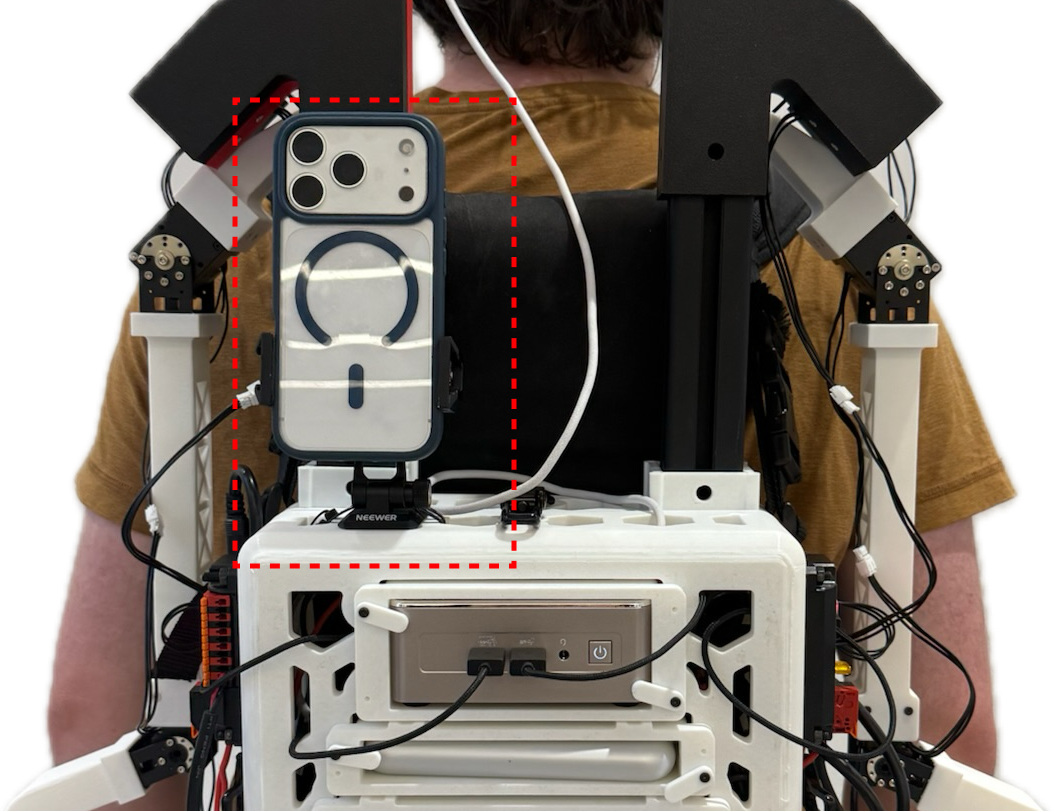
When using a robot that is not the tidybot base that controls its own base separately (such as the RB-Y1m), use the use_mock_base flag (under module_overrides.base) in the robot config.yaml. To activate the base, tap the appropriate activation keys as explained in Configuration. Currently, the base will only move once the s key is tapped, indicating the start of an episode.
Reference
Base module internals (RMQ topics, use_mock_base): base/README.